Wedding seating chart: floor plan, tables and auto-seating
Seating is the section of the INVITO couple's app where you draw the venue floor plan and seat your guests. Start from a ready-made room (Pick a room) or add tables by hand, then drag guests onto seats or press Seat: the app keeps each invitation together, puts kids next to their parents and the couple at the top table. Guests and their RSVP answers come straight from your guest list; anyone who declines after being seated shows up under Needs attention. For the venue you get a printable A3/A4 poster, a PNG, a ‘Find your seat’ list and a CSV with meals. Guests never see the seating plan on the invitation site.
A paper seating chart lasts until the first ‘sorry, we can’t make it’. Then come the arrows, the crossed-out names and yet another version for the venue. And someone still has to count who is eating what at each table.
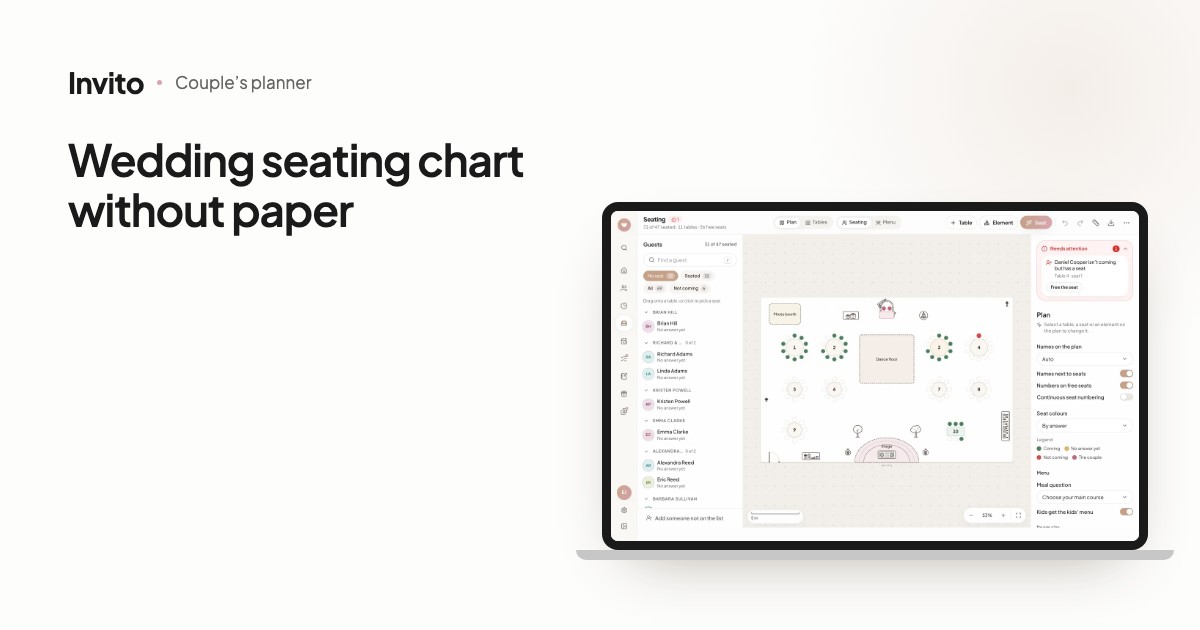
The couple’s app has a section just for this: Seating. The floor plan, the guests from your list and their answers all live in one place.
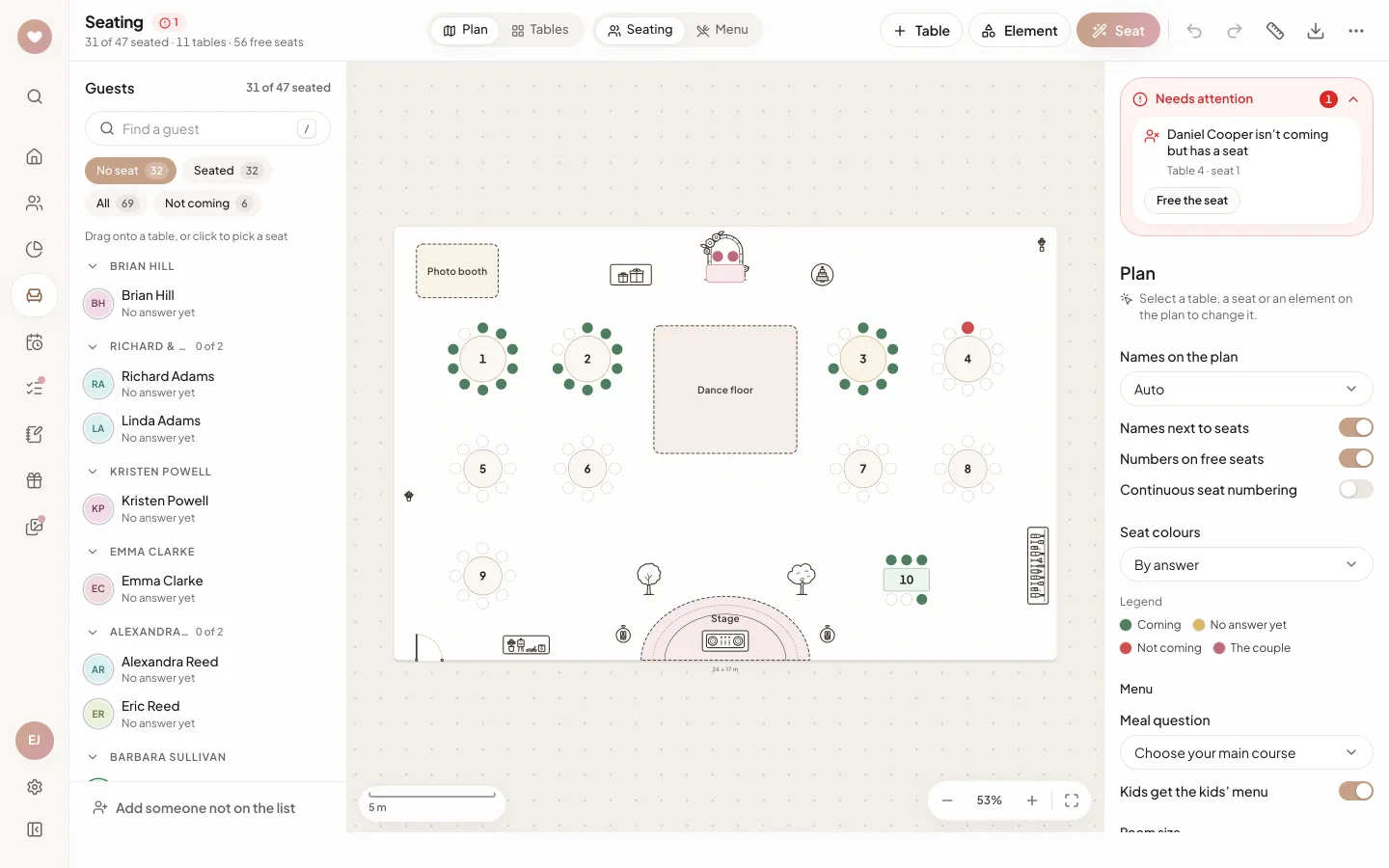
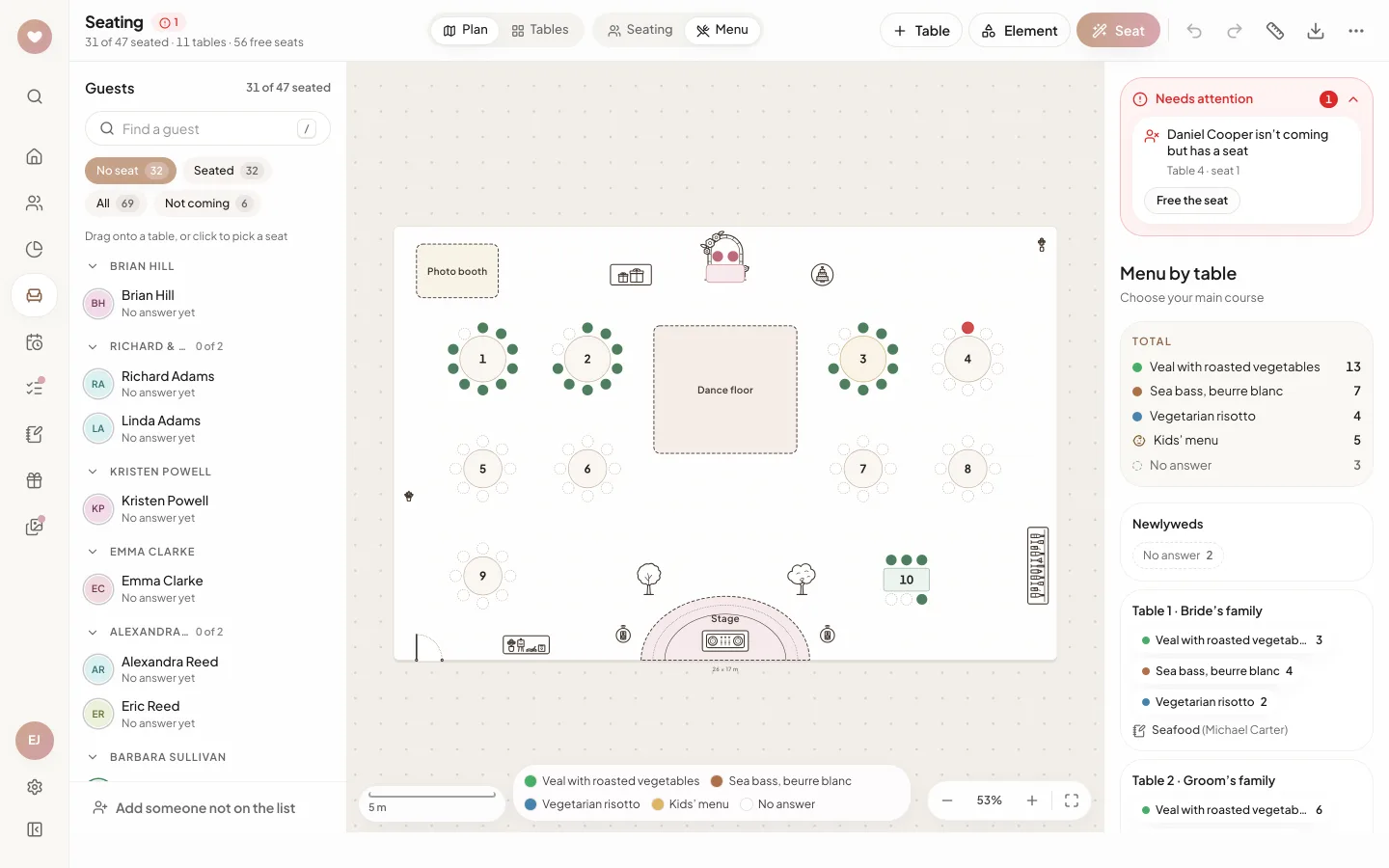
The floor plan: part of the guest list is already seated, and a guest who declined is flagged under Needs attention. Example with made-up data.
How it works
- Open Seating: on a phone it is a tab at the bottom of the screen, on a computer it is in the sidebar, with a counter such as ‘54/70’ next to it.
- Start with Pick a room (a ready-made plan) or Add a table to lay everything out yourself.
- Drag a guest from the list onto a table or a specific seat. Or click the guest, then the seat.
- To seat everyone at once, press Seat: the ‘Seat automatically’ dialog opens.
- When the plan is ready, use Export for print files and a file for the venue.
There is nothing to save: the app saves the plan by itself a moment after each change, and the status at the top reads ‘Saved’.
The room at real size
Tables have real sizes in centimetres. A round one is ‘Ø180 cm for 10 guests’, and there are 9 shapes in total, from round and banquet to the top table, half-round and a row of chairs. For each table you can change the name (‘Bride’s family’), the number of seats, the space between seats, rotation and colour.
You can also add room elements: 47 kinds in 7 groups, including a dance floor, stage, photo zone, bar, cake, DJ, doors, pillars, exits and even power outlets. You set the room’s width and depth in metres, and the Ruler helps you check the aisles.
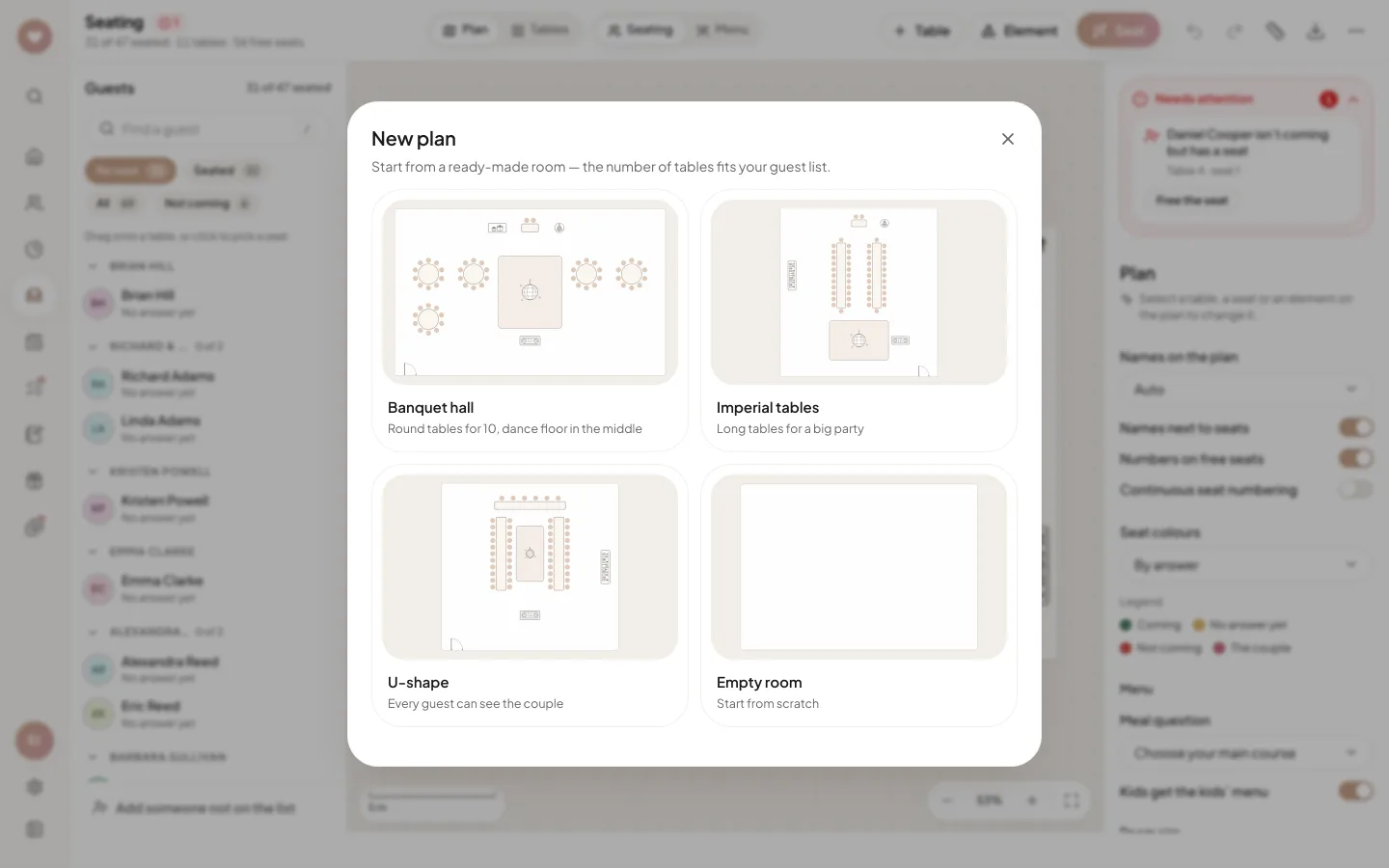
New plan: four ready-made rooms, with the number of tables sized to the guests who are coming.
The ready-made rooms are Banquet hall with round tables for 10, Imperial tables, U-shape and Empty room. A new template replaces the tables and takes everyone off their seats, but you can undo it: the app remembers 150 steps back.
Auto-seating by rules
The Seat button places guests by simple rules, with no guesswork:
- each invitation sits together, on neighbouring seats;
- kids come right after the adults on their invitation, so they sit next to their parents;
- the couple goes to the top table if there is one on the plan; no other guest is placed there;
- the biggest groups are placed first, each at the table where they fit most tightly;
- anyone who already has a seat stays in it.
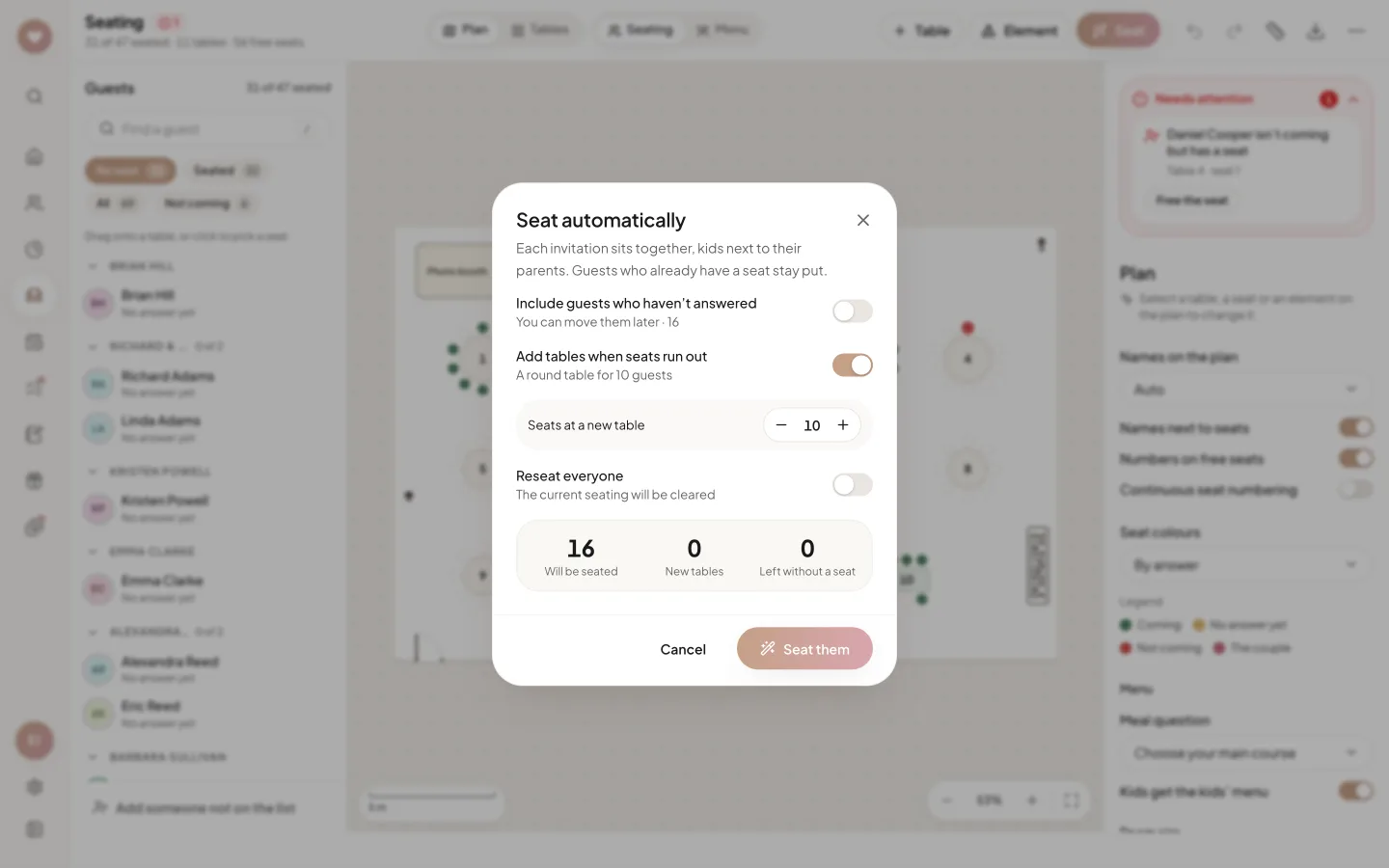
Before you run it, the preview shows how many guests will be seated, how many tables will be added and who will be left without a seat.
The options are ‘Include guests who haven’t answered’, ‘Add tables when seats run out’ (new tables are round, with 4 to 16 seats) and ‘Reseat everyone’. There are no ‘keep these two apart’ rules, but that is easy to fix by hand: drop a guest on an occupied seat and the two simply swap.
On a phone: tables as a list
On a phone, Seating opens on the list of tables. At the top is ‘No seat yet’: tap a guest, then a table. The Plan view shows the same room; to move a table, press and hold it.
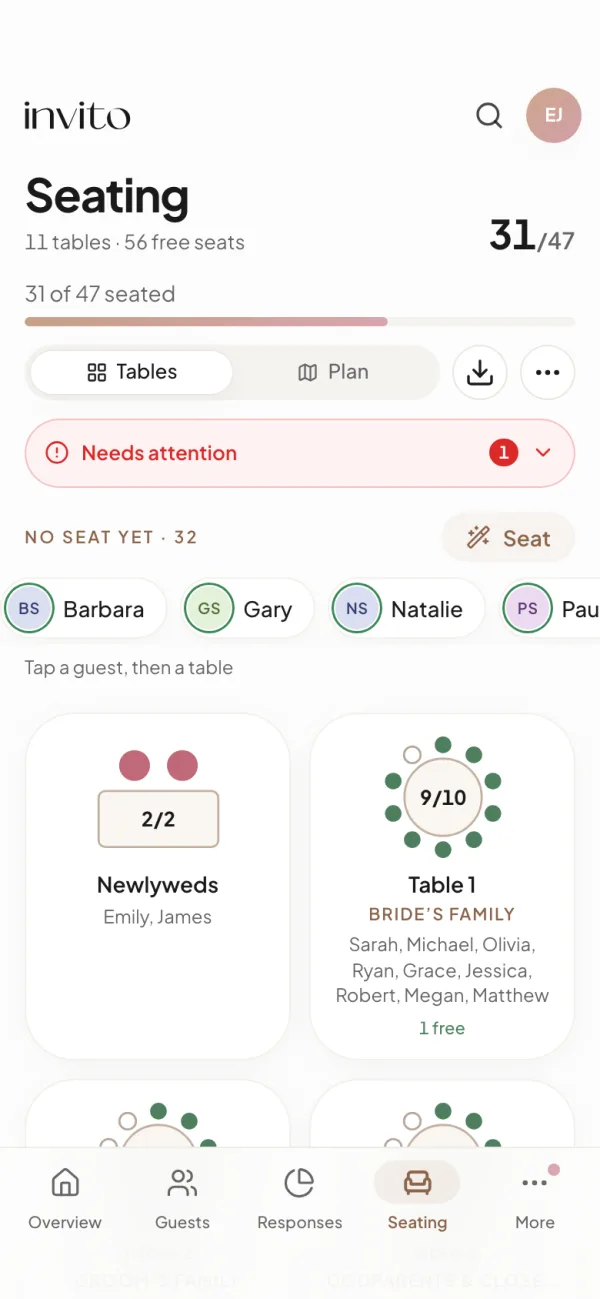
On a phone: unseated guests at the top, table cards below.
RSVP answers and meals by table
Guests and their answers come from the guest list in the app, so there is nothing to retype. Guests who said yes count towards seating; guests who declined drop out of the ‘No seat’ filter. If a guest declines while already holding a seat, they appear under Needs attention with a ‘Free the seat’ button. Seats are tied to the person, so they survive new answers and a reordered guest list.
Menu mode counts the meals at each table from the meal question in your RSVP form. Children are counted under Kids’ menu, and free-text answers (allergies, for example) are shown with the guest’s name.
Menu by table: totals for the room and per table, with a guest’s note.
What it gives you
- One chart instead of several paper versions: changes save themselves, and 150 steps can be undone.
- Declines don’t slip through: Needs attention shows which seat to free.
- The venue gets one file: a CSV with the table, seat, meal and notes for every guest.
- At the door, guests find themselves on the alphabetical ‘Find your seat’ list that you print. The seating plan is not shown on the invitation site.
- Your wedding planner, if your order includes one, sees and can edit the same plan.
More about the app itself is in the article about the couple’s app, and about the list for the venue in the article about the guest list PDF.
Frequently asked questions
- Do we have to seat guests who haven’t replied yet?
- No. By default only guests who said yes count. You can seat pending guests in advance, by hand or with the auto-seat option ‘Include guests who haven’t answered’. They are counted separately and do not add to the ‘seated’ progress.
- What happens if someone declines after we’ve seated them?
- They keep the seat, but appear under Needs attention as ‘isn’t coming but has a seat’, with a Free the seat button. The Seating card on the Overview warns you too. The seat is not freed automatically: you decide.
- Will auto-seating split up couples and families?
- No. Each invitation is seated on neighbouring seats, kids right after their parents, and the couple goes to the top table. Only when no table has room and adding tables is switched off can a family of 5 or more be split. Guests you have already seated are not moved unless you choose Reseat everyone.
- Can we seat the photographer or host who isn’t on the guest list?
- Yes. Use ‘Add someone not on the list’ and enter a name and who they are, for example Photographer. They get a seat at a table but no invitation.
- Can we print the seating plan or send it to the venue?
- Yes, from Export. There is an A3 or A4 printable poster (save it as a PDF from the browser’s print dialog), a PNG image of the plan, an alphabetical ‘Find your seat’ list and a CSV spreadsheet for the venue with seats, meals and notes.
- Can my partner or our wedding planner edit the plan from another device?
- Yes. The plan saves to your account automatically and opens on any device. Your wedding planner always has access to seating. It is not side-by-side editing, though: if someone else saved a newer version, you see a notice and the newer plan is loaded.
Want an invitation like this?
Pick a design — we do the rest. Send us your photos and wishes, and we prepare the site, the monogram and the language versions.